Performance Review Guide
1. Look for email for your log in information. If you don’t have an email account the email will be sent to the office email.
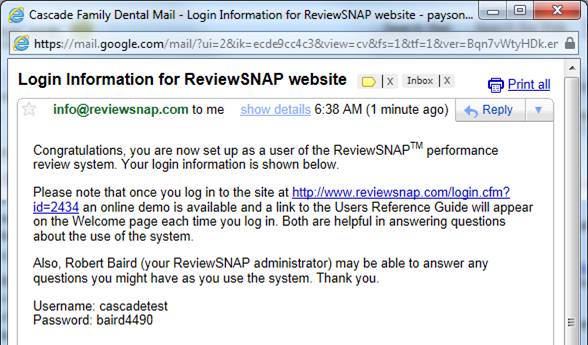
2. A second email will notify you to login and perform a “Self- Appraisal”
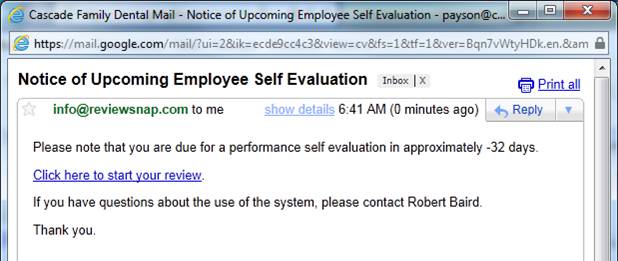
3. Click on the link in email or login through the team portal.
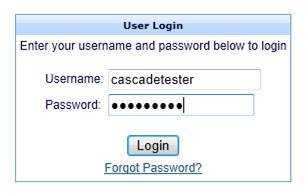
4. Once logged in, click on “Manage Reviews.”
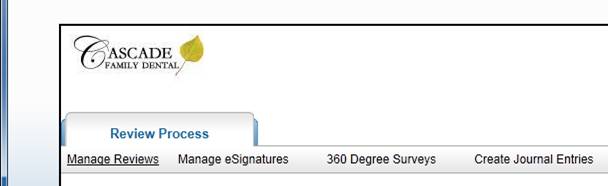
5. Here you have a few options. You can view/manage your current goals, change you username and password to whatever is easiest for you to remember, and see past performance reviews. First click on “Manage Goals” to see what this looks like.
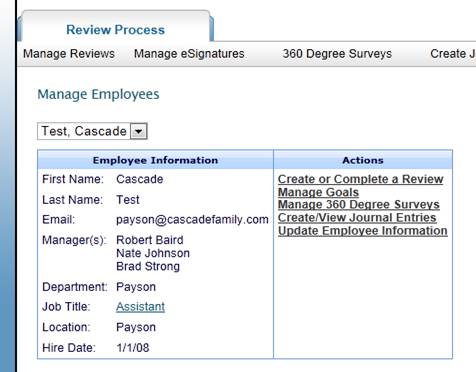
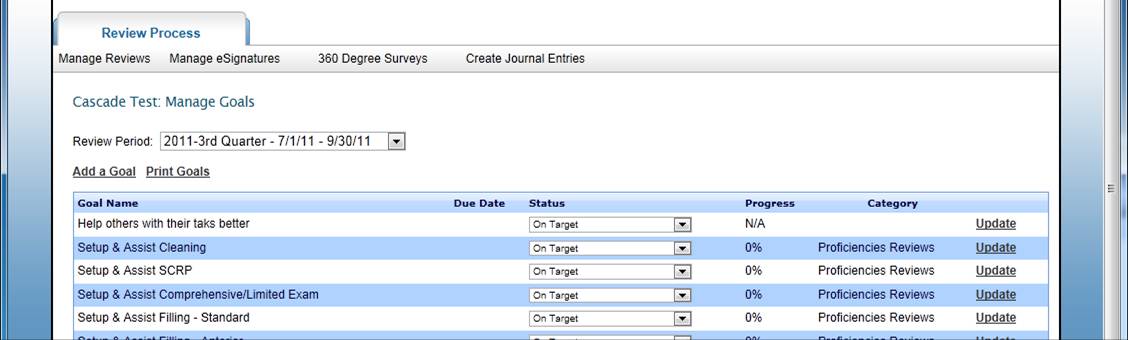
6. Choose the current time frame. Here you can see the goals for the respective time frame. Now click on “Manage Reviews.”
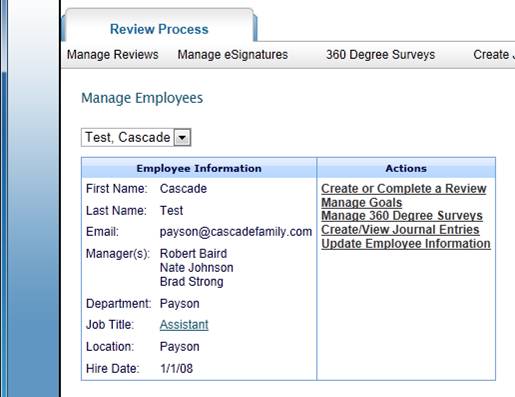
7. This time click on “Create or Complete Review.”
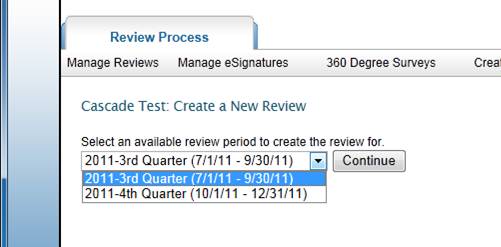
8. Choose the appropriate time frame, and click “Continue”
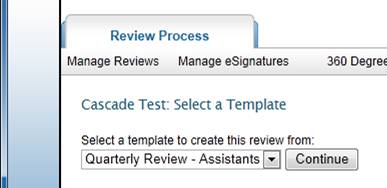
9 .Choose the template listed and click “Continue”
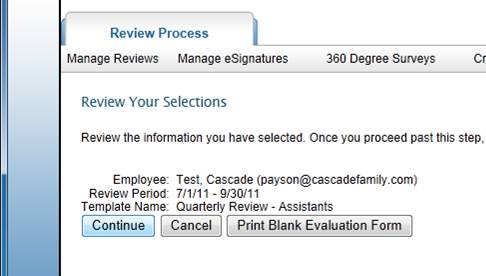
10. Review the information chosen and click “Continue.”
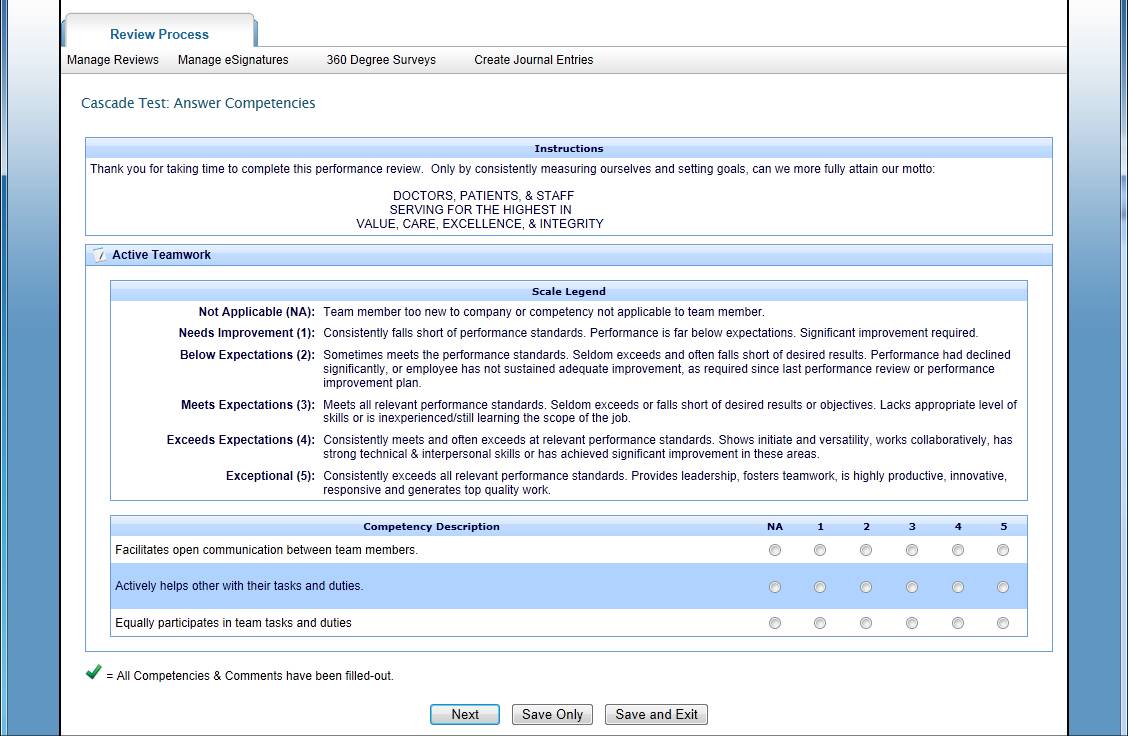
11. Now follow listed instructions to complete your review. Click “Next” to advance through the sections.
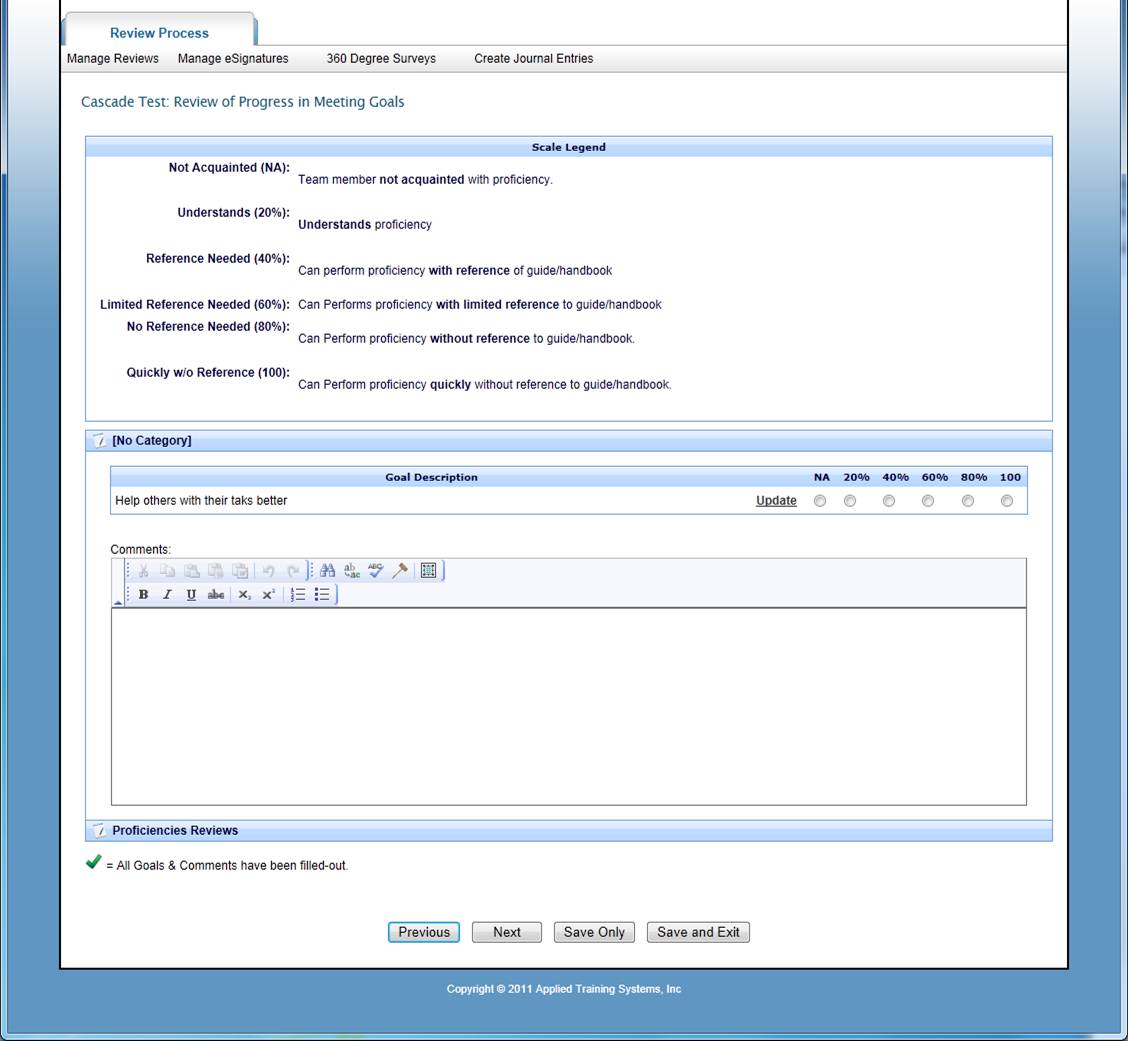
12. On the “Review Progress of Goal” section, make sure to click on “Proficiency Review” section at the bottom of the screen to expand this section. If every spot is not filled in, the form will not let you proceed. Make sure to write something in each “Comments Section”.
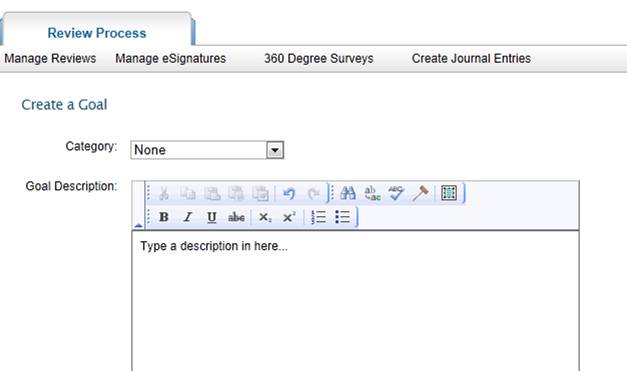
13. In this section, you can record suggested goals for the next review period. This can also be done later if you are not ready.
14. Click on “Click here to hand off this review to your manager.”
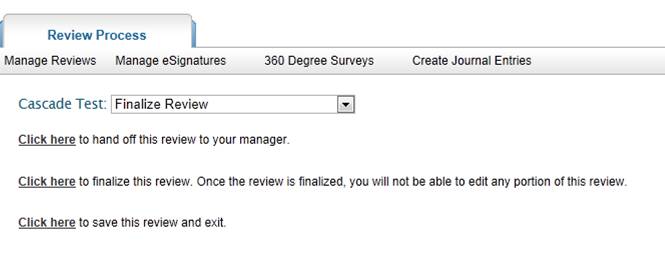
15. The doctors will now complete the same review for you and then set up a time for an interview to go over results and set goals for the next quarter.